
 Amazon Global Store opening
When peak season arrives, FBA replenishment demand increases. If your goods are still in China, how can you replenish efficiently? The Amazon Global Smart Hub Warehouse (GWD) auto-replenishment feature can help!
After enabling the GWD auto-replenishment feature,inventory stored in the Ningbo and Shenzhen GWD warehouses will be automatically replenished to US-site FBA, without sellers needing to create it manually.
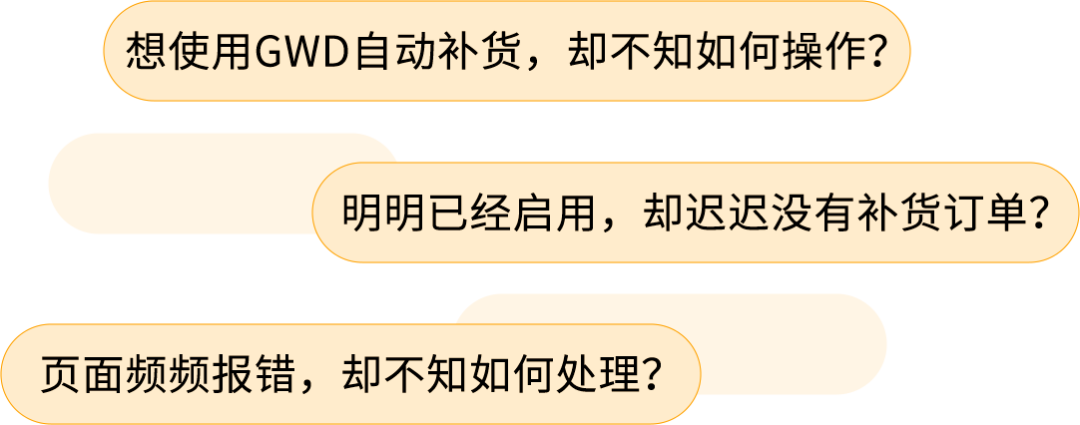
However, when enabling it for the first time or during use, many sellers may get stuck on these steps:
To address this, Amazon has launched a practical tool—the "GWD Auto-Replenishment Operation Guide", where you can find the correct answers for everything from complete steps to enable auto-replenishment, fee details, and replenishment quantities, to solutions to common operational issues. Follow the guide and you can smoothly enable auto-replenishment to help boost peak-season sales.
Now follow us to see how to use this guide!

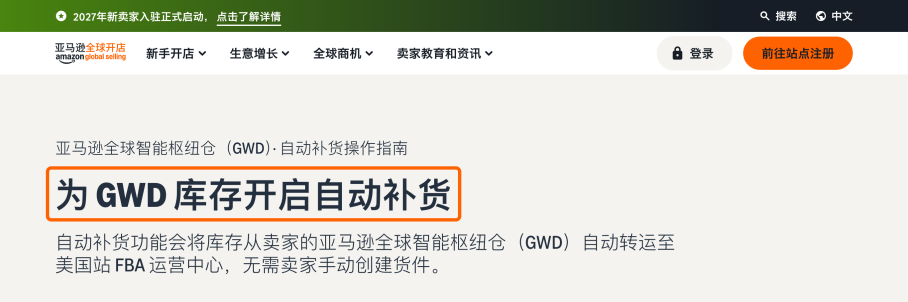

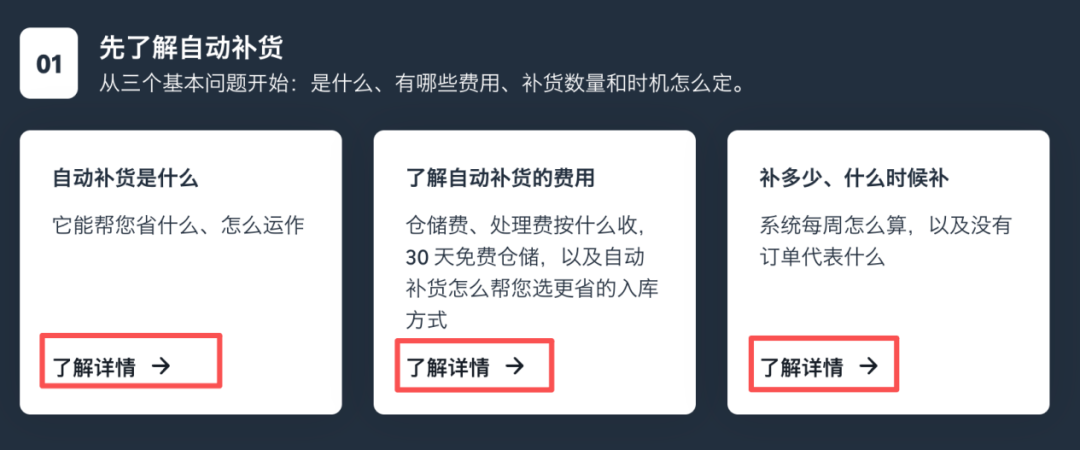
After entering the "GWD Auto-Replenishment Operation Guide" homepage, you will see two major sections:"Learn about auto-replenishment first" and "Directly handle your situation". Then follow the 3 steps below to find the information and operation instructions you need.


You can select the corresponding card based on your situation and needs:
▶Want to learn about auto-replenishment first?
You can click the 3 types of cards in the "Learn about auto-replenishment first" section to view relevant introductions, fees, replenishment quantities, and other information.
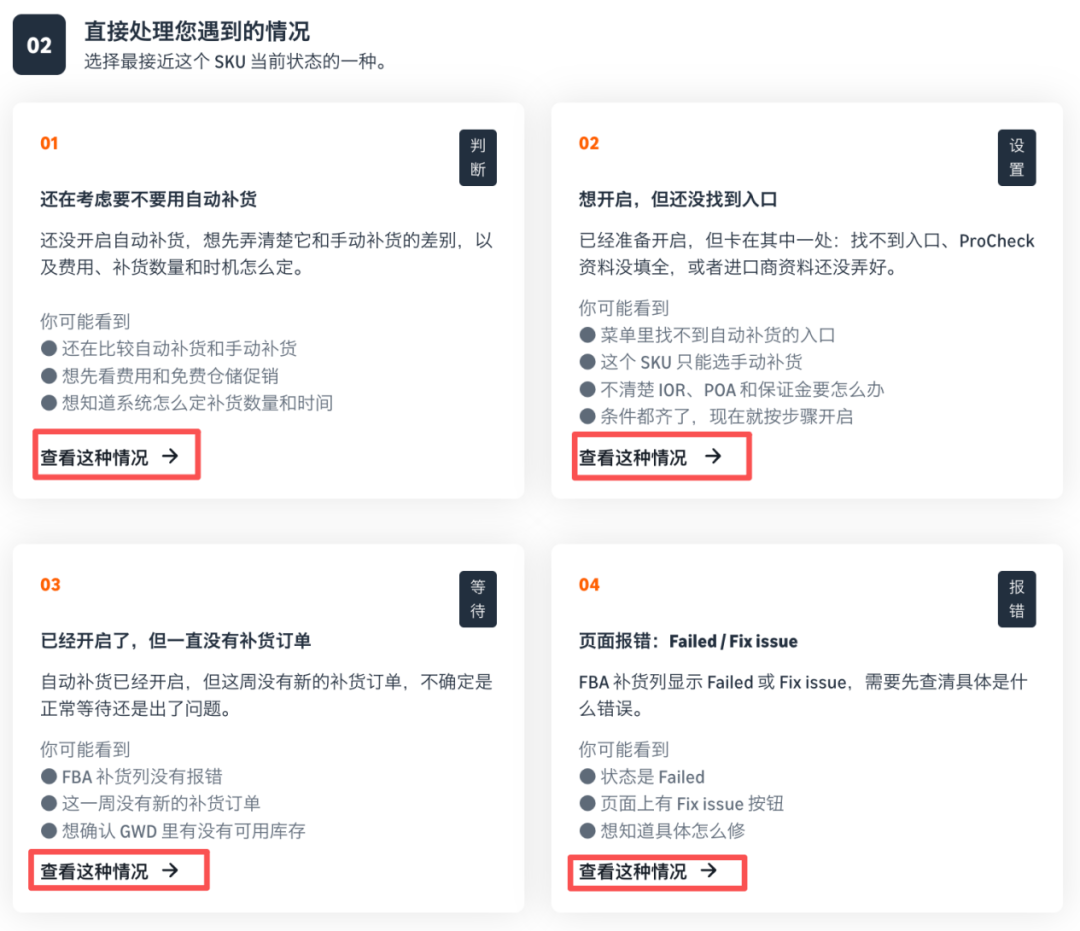
▶Already enabled it, but hit a snag?
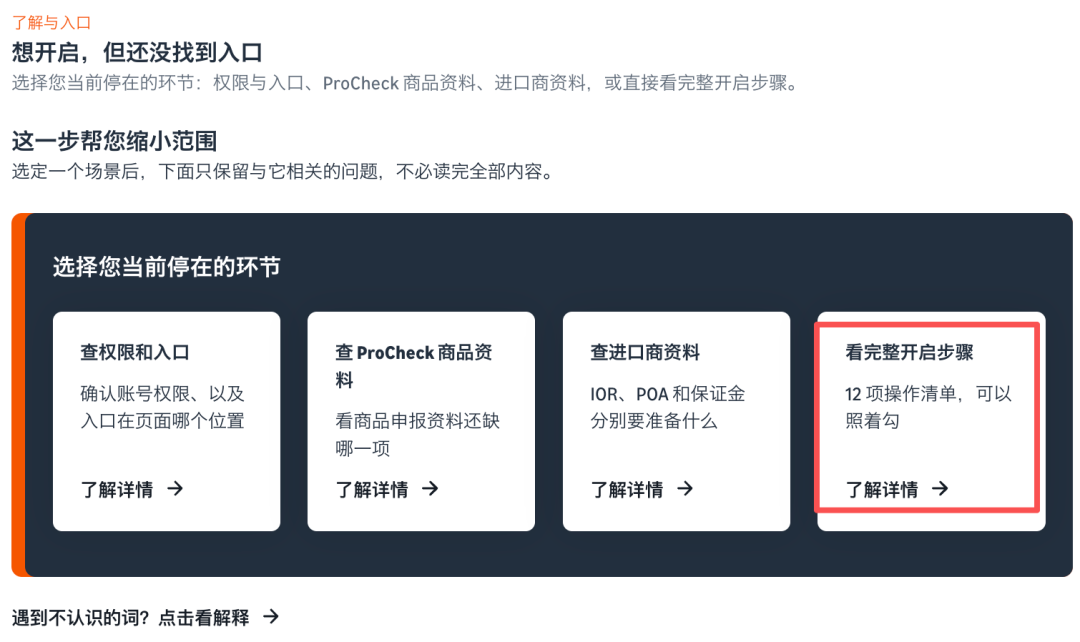
In the "Directly handle your situation" section, based on the current SKU status, select the card that most closely matches your situation from "Judgment", "Settings", "Waiting", and "Error", then click to enter.
▶Want to view the complete activation steps?
If you do not yet know how to enable the auto-replenishment feature, enter the "Settings" card, click "View complete activation steps", select the corresponding "product category" and "business type", and then click "Go to view operation steps" to see the complete process.
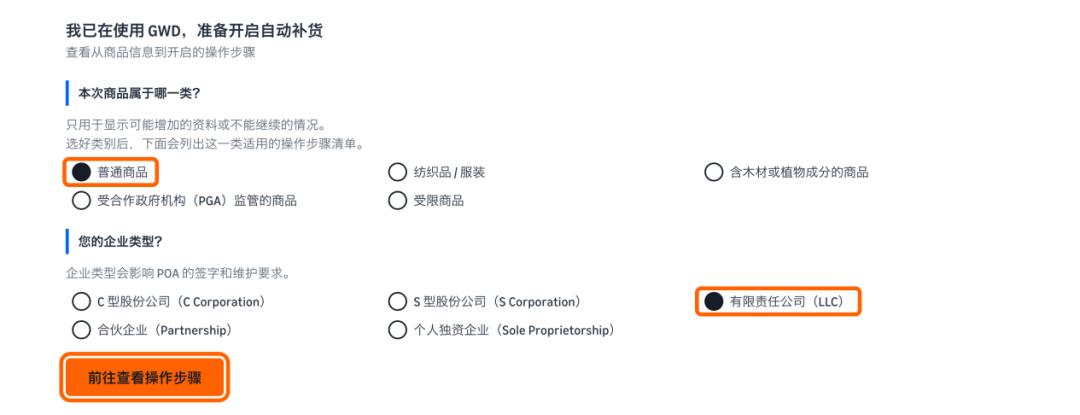

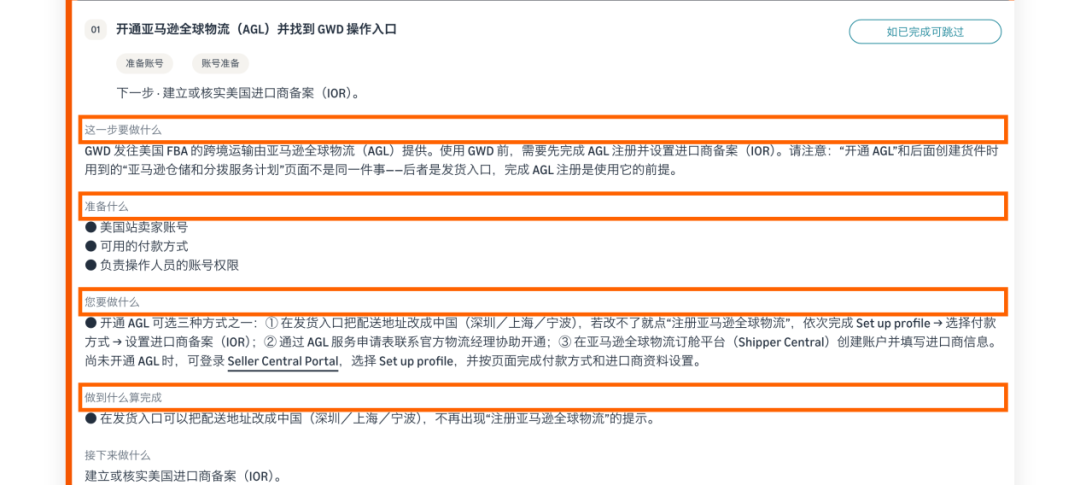
After selecting the corresponding card and entering it, the guide uses operation cards to clearly explain what needs to be done at each step. Each card contains 4 pieces of information:
◉ What to do at this step: Clarify the operation goal of the current step
◉ What you need to prepare: Understand the required materials or information
◉ What you need to do: View the specific actions you need to complete
◉ What counts as completed: Check against the completion criteria to confirm whether the current step is complete
Follow the cards and check item by item, and you can clearly understand the operation requirements for the current step and what needs to be done next.

After reading the operation instructions, click the relevant buttons below the card to continue or get more help:
◉ Click the "Open..." button: jump directly to the corresponding operation page, such as Seller Central, the AGL backend, etc.
◉ Click the "... instructions" button: enter the Amazon official help page to learn more about related instructions
◉ Click the "... course" button: access the Seller Encyclopedia system courses to systematically learn related knowledge
You can click the 3 types of cards in the "Learn about auto-replenishment first" section to view relevant introductions, fees, and replenishment quantity information.

From selecting the content you need and viewing specific steps, to entering the corresponding page, simply follow the guide step by step.
The year-end peak season is in full swing. Timely replenishment and solid inventory management are key to better handling sales surges. Want to learn the activation steps for GWD auto-replenishment, or find solutions to common issues? Open the "GWD Auto-Replenishment Operation Guide" now, look up the relevant guidance as needed, and make peak-season replenishment clearer and smoother!
If you have any questions about Amazon, you can use the link ( https://wsurl.cc/wg4chn) or scan the QR code to contact the official client development manager: