 Amazon Global Store opening

Rest assured — the following are completely unaffected:
Account data, settings, product information, inventory, and order history
SP-API integrations and third-party tools continue to work as usual
Team members and sub-users have been migrated automatically
Advertising campaigns, promotions, and Fulfillment by Amazon settings remain unaffected
You don't need to do anything to keep your data. This update changes navigation and entry points, not your business data.
Meanwhile, the new version has rebuilt four frequently used pages: Manage Inventory, Manage FBA Inventory, Manage Shipments, and Manage Orders. The first three are already live; Manage Orders is coming soon.

The biggest headache for most sellers is “Where did my frequently used features go?” The new version offers three tools to help you locate them quickly:

It lists every tool in the new version by its location. Not sure where a tool moved? Open the sitemap to see it at a glance and jump directly. If you are just starting with the new Seller Central, open the sitemap first and quickly review where your frequently used features now live to avoid searching back and forth.
Path: Left navigation bar > Bottom left > Sitemap
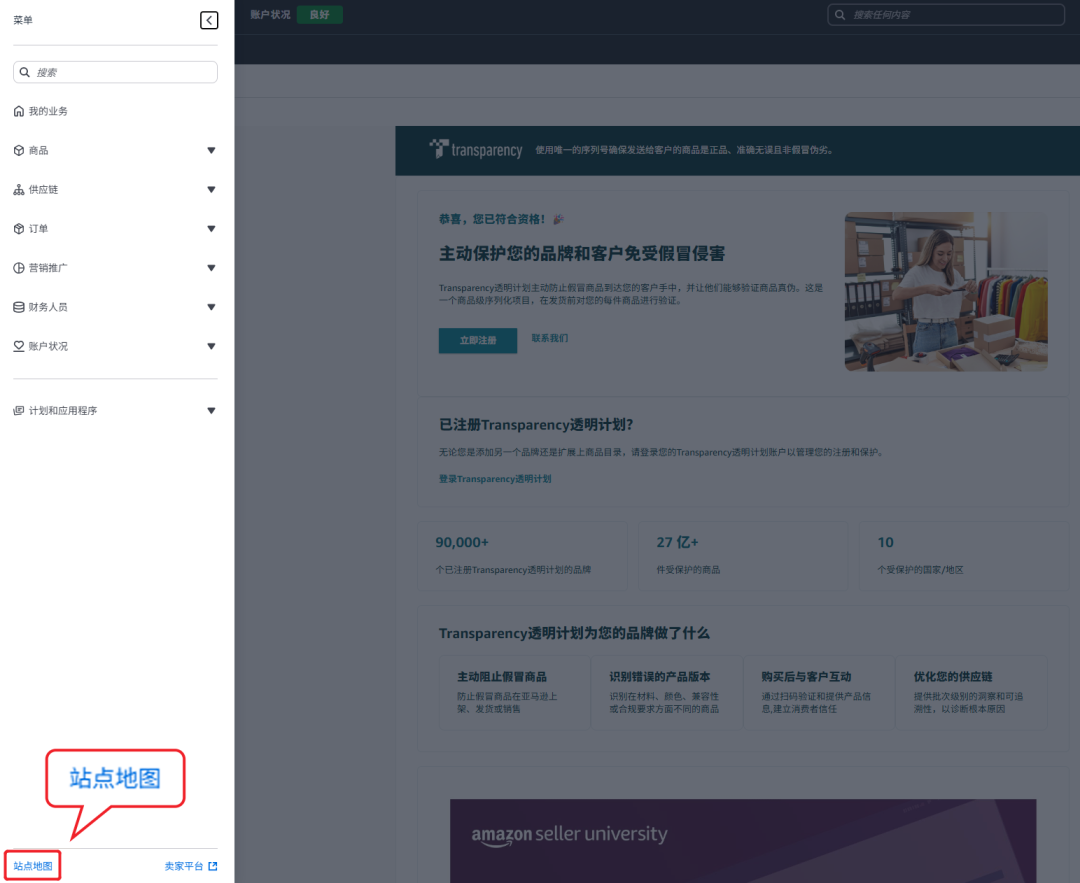
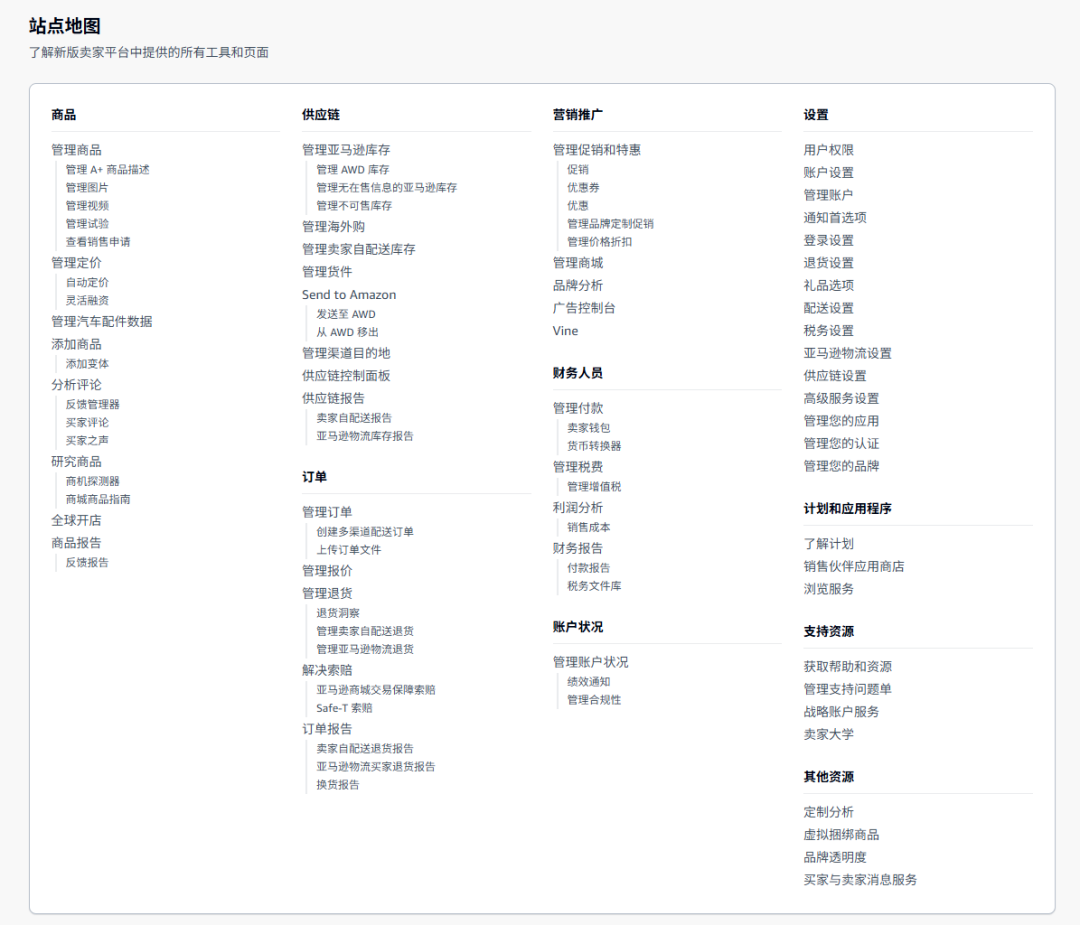
*Screenshot shows the US marketplace sitemap; other marketplaces may differ slightly based on available features.

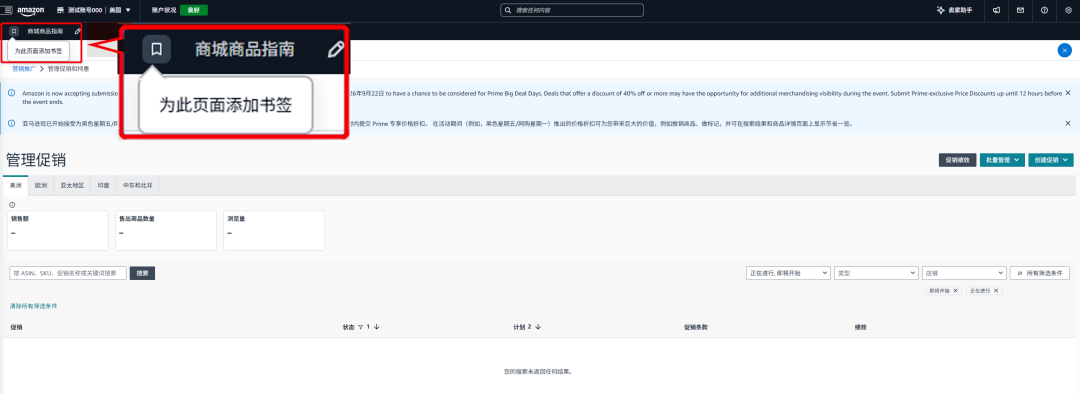
Bookmarks from the classic version are automatically synced to the new version—no need to re-add them. Sellers unfamiliar with the new version can bookmark pages they use daily for one-click access.

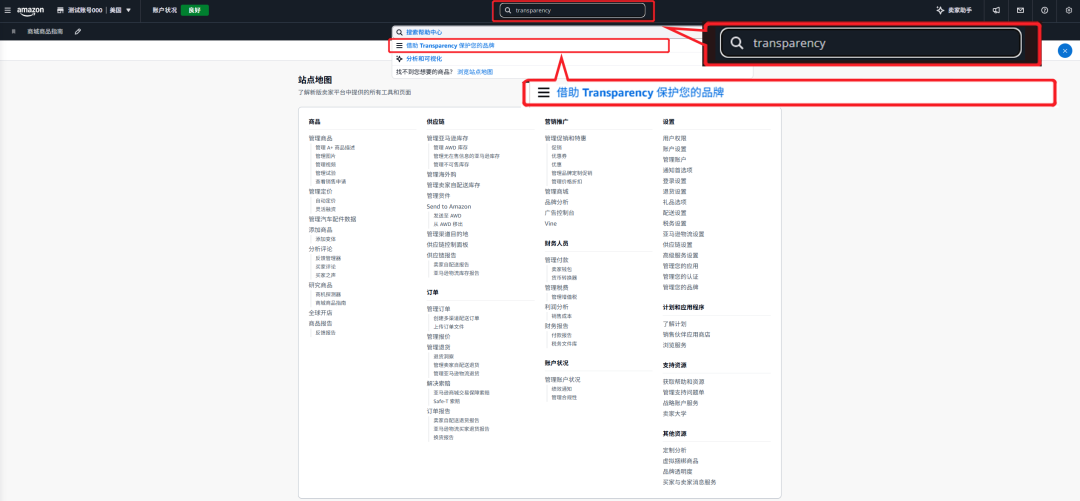
Use the search bar at the top to jump directly to a tool by entering its name. Try old names or new names; if you still can't find it, try the English name.
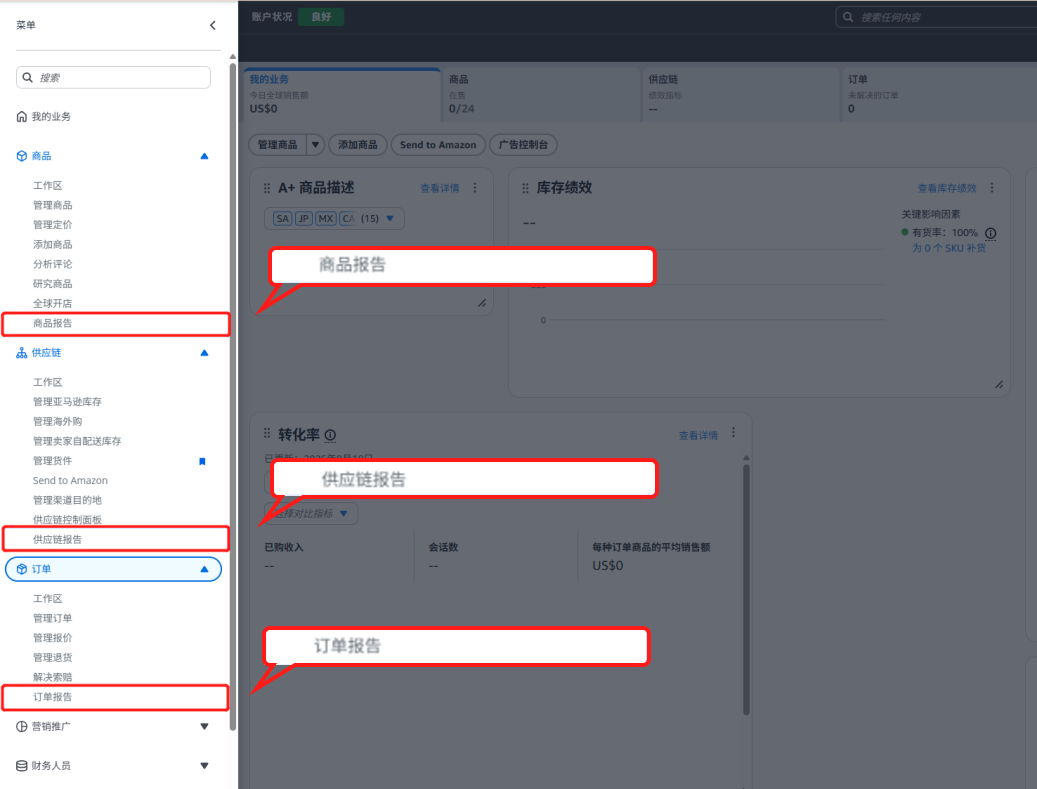
The reports page has moved in the new Seller Central! You can now find reports by category in the following places:
Home > My Business workspace > “All Reports” on the right, which includes reports from multiple categories
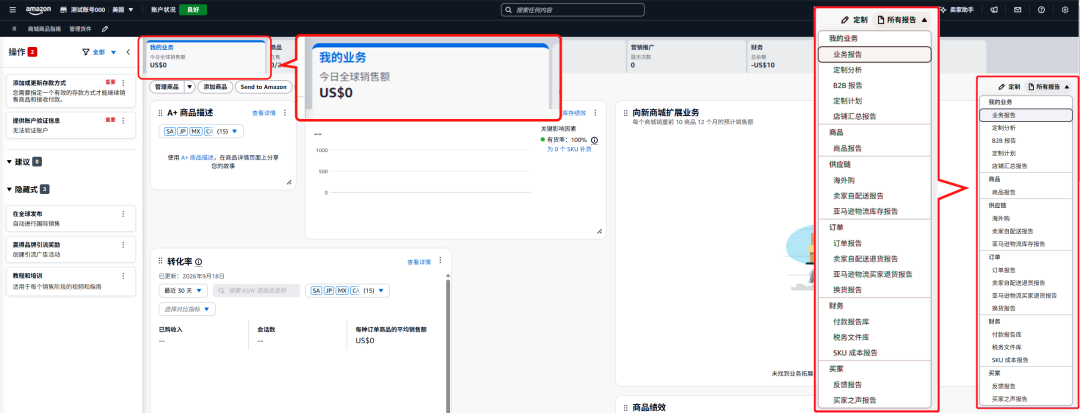
Home > left navigation bar; corresponding category reports are also available in the Products/Supply Chain/Orders workspaces
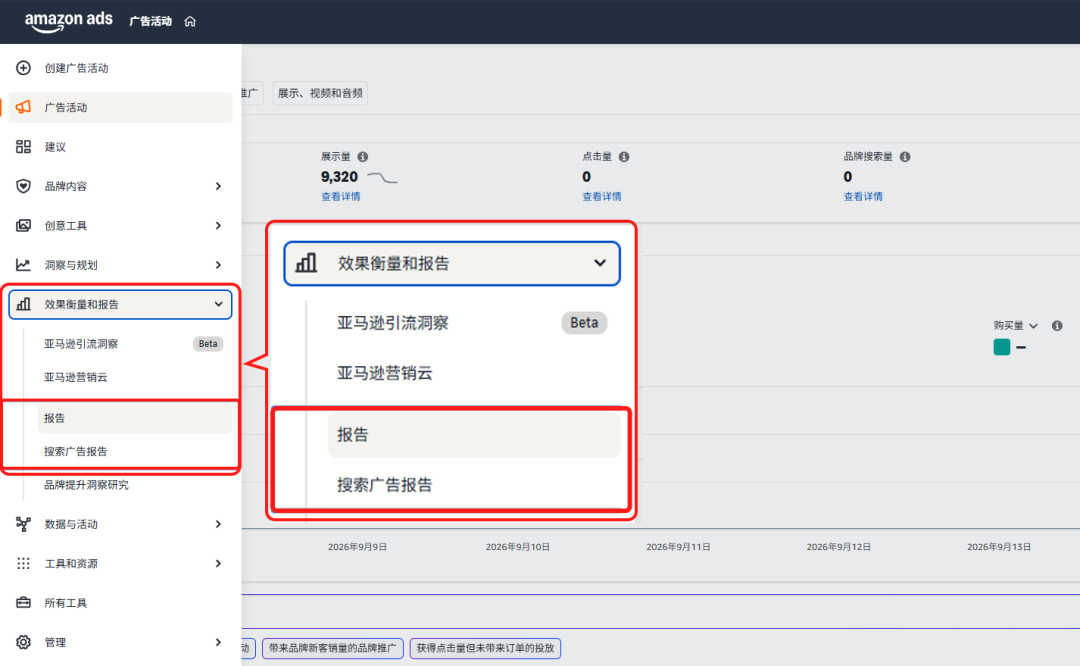
Home > left navigation bar > Marketing > Advertising console > Measurement and reporting > Reports/Search Ads Reports — here you can find various advertising-related reports

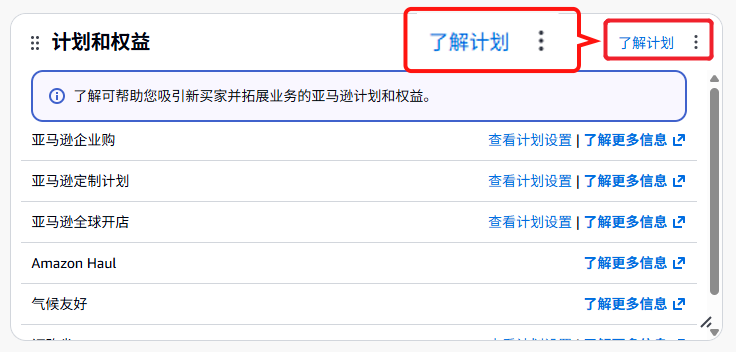
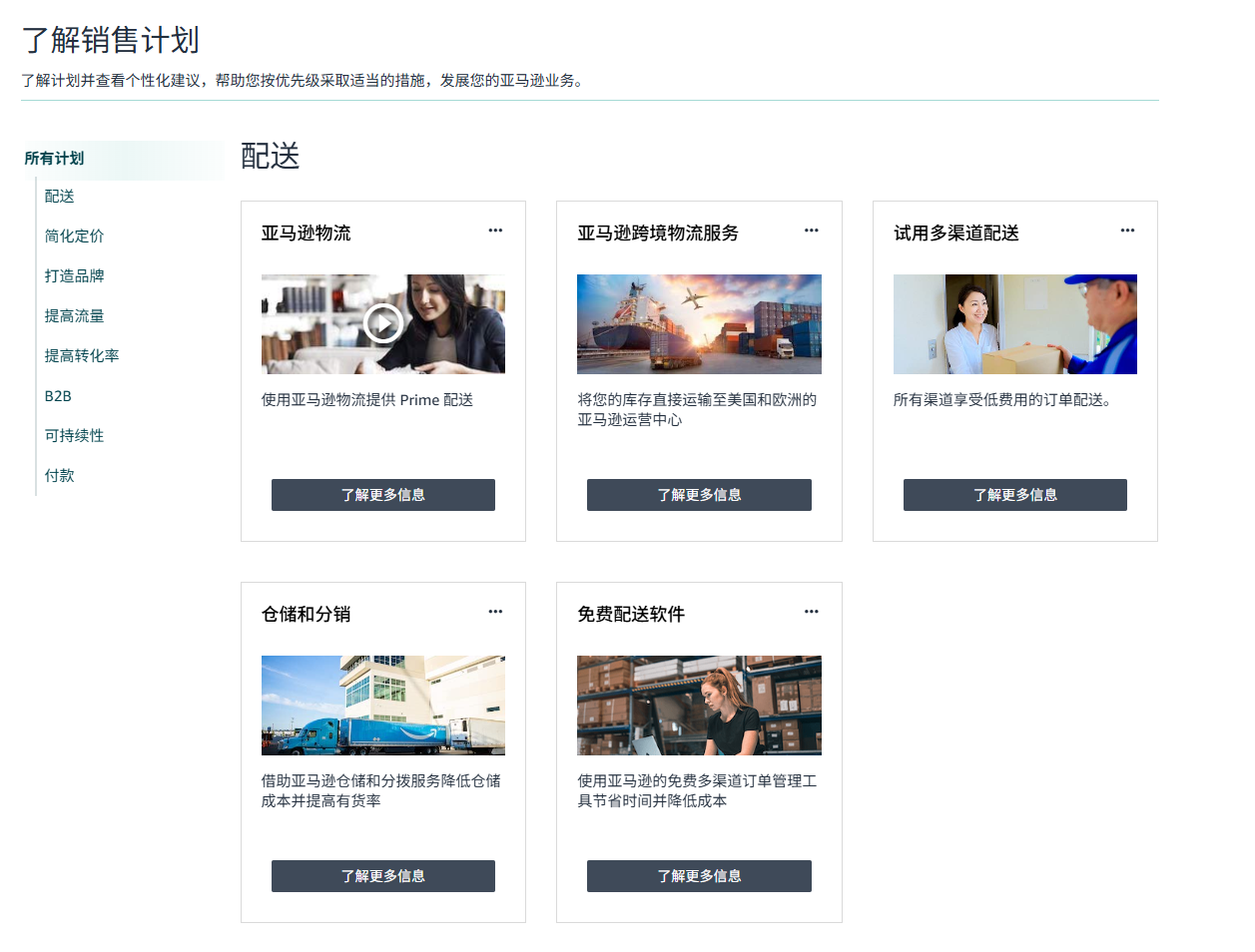
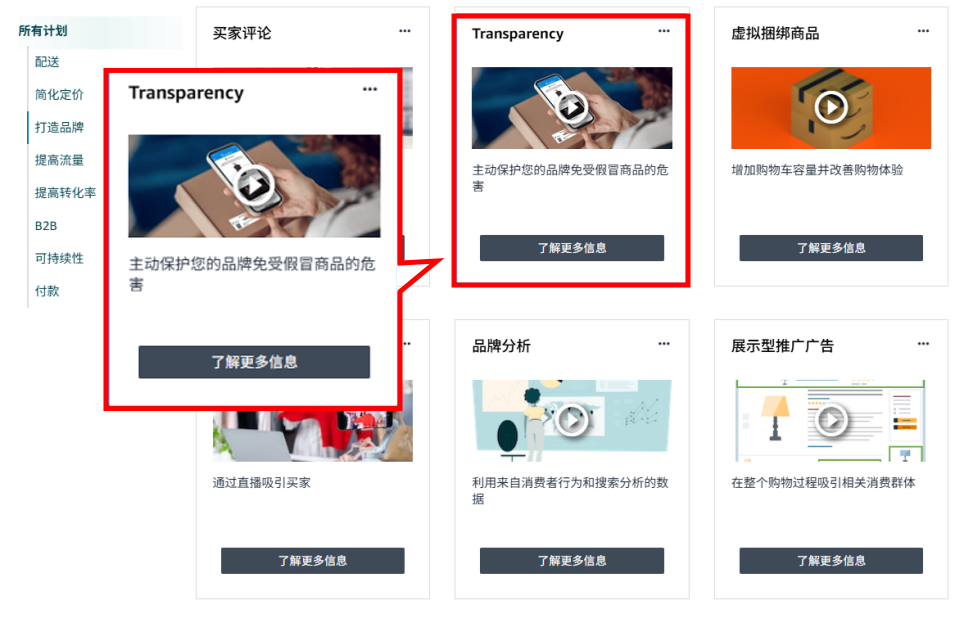
Home > My Business workspace > Programs and Benefits widget > Learn about programs > “Build your brand” on the left > find “Transparency” on the right
The Programs and Benefits widget also includes many commonly used seller programs and benefits, including B2B, Amazon Multi-Channel Fulfillment, Report a Violation, UPC Exemption Application Guide, Seller Wallet, and more. Be sure to save them. Path screenshots are below.


Once you adjust to the new entry points, you'll find the new version does solve some long-standing issues from the classic version:

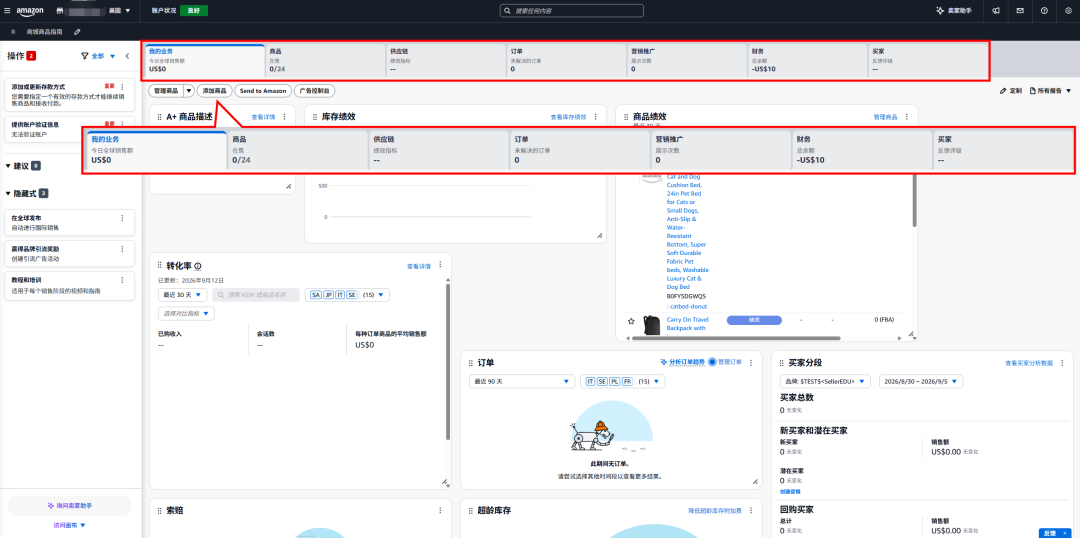
The new version groups more than 200 tools by business area into 7 workspaces: My Business, Products, Supply Chain, Orders, Marketing, Finance, and Buyers. The logic shifts from “remember which menu it's in” to “think about which business area it belongs to.” If your team has specialized roles, each can clearly map to their respective sections.

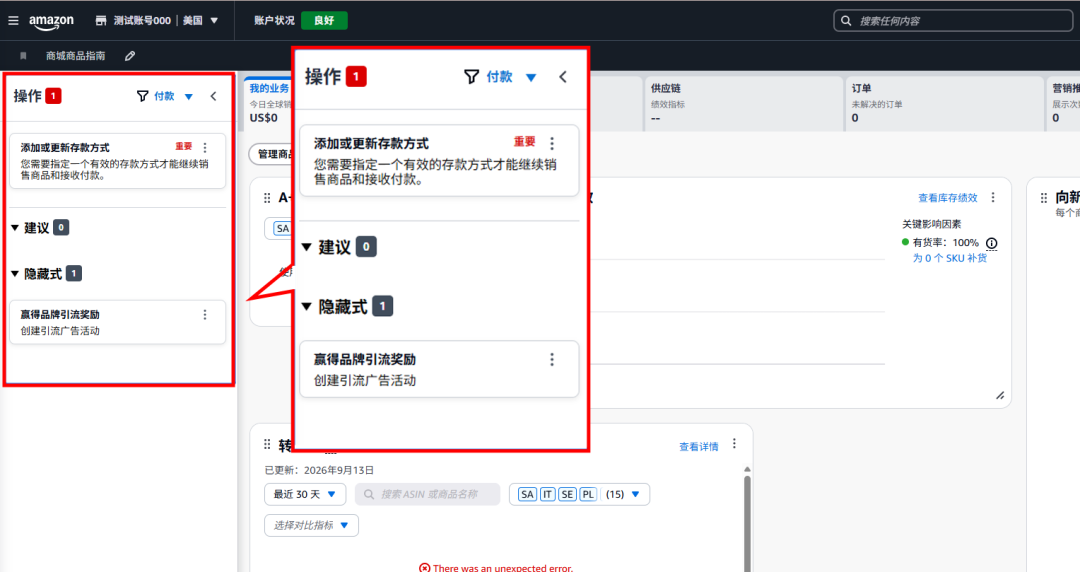
Action Center brings product listing issues, policy notifications, and performance alerts together in one place. No more worrying about missing important notices hidden in pages you didn't open. While working in different workspaces, it also shows relevant action reminders—be sure to check them!

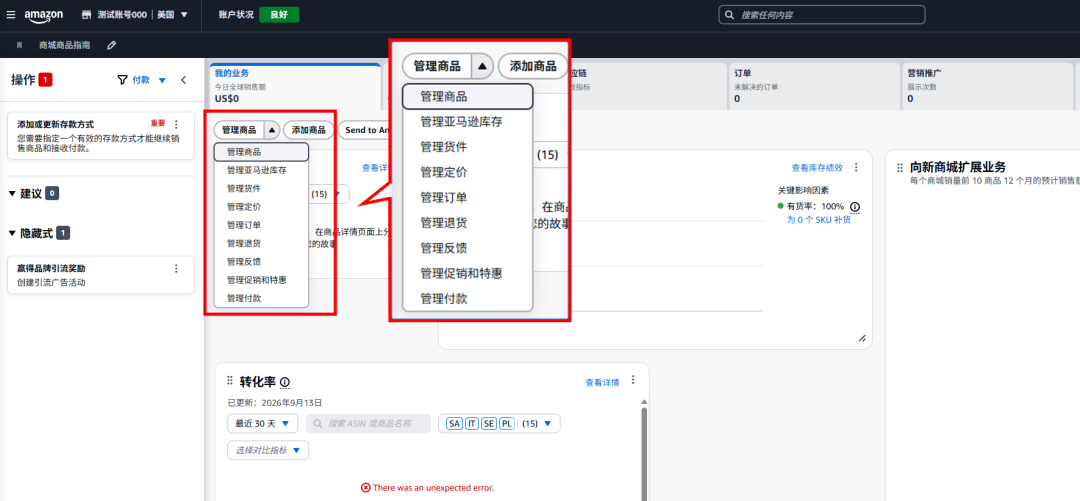
Each workspace has a Manage Hub; its dropdown menu lets you jump directly to frequently used pages. Different workspaces have different management features, so you don't have to return to the left navigation and click through layers every time.

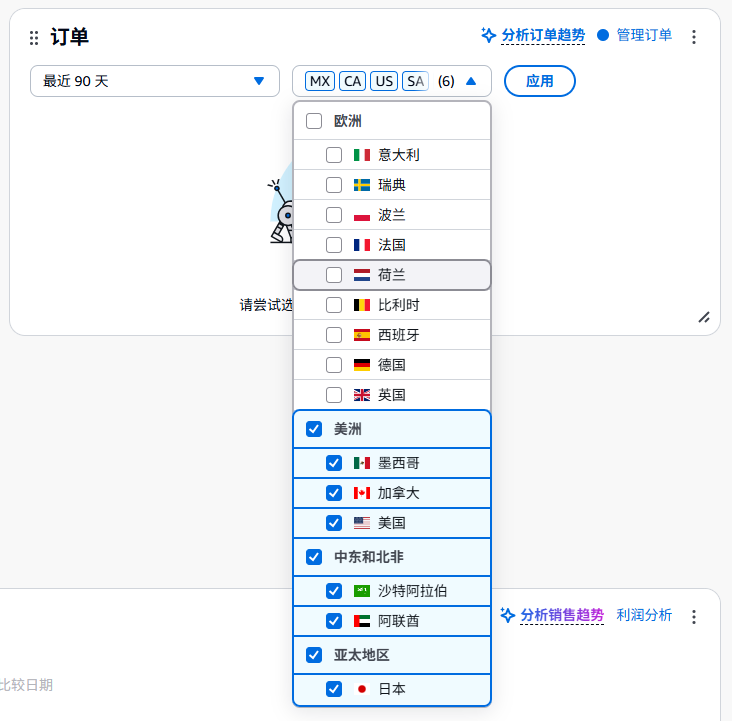
Global view — one widget gives you an overview of data across all marketplaces, and you can filter to a specific marketplace. For multi-marketplace sellers, this can save a lot of time.
You can see the big picture or focus on a single marketplace, switching flexibly as needed.

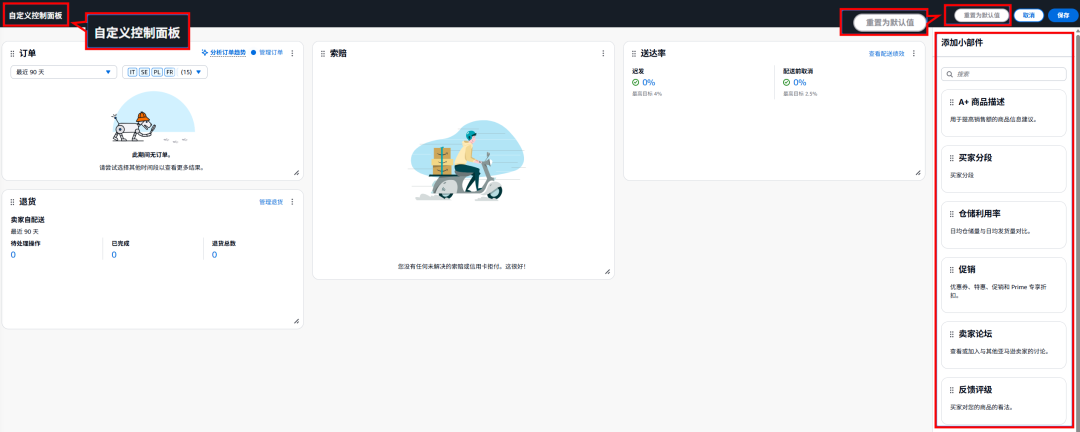
You can add or remove widgets in each workspace and keep only the data you care about. Messed it up? Click “Reset to default” anytime to restore.

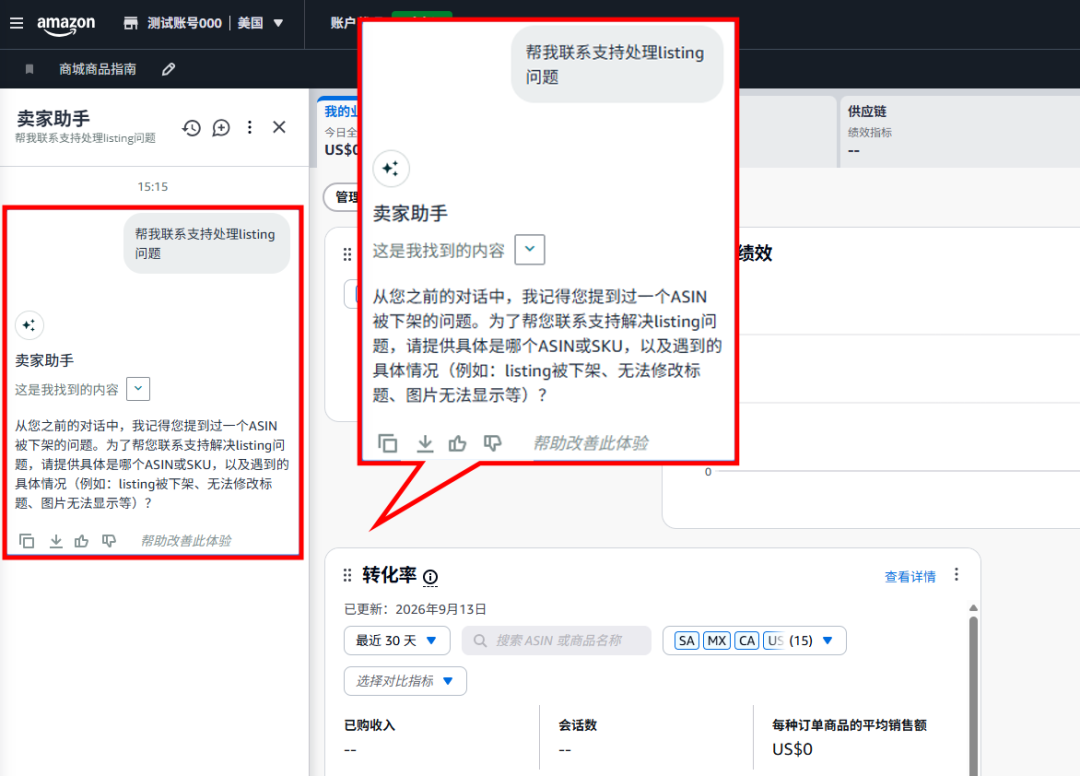
Seller Assistant is more than a Q&A bot—you can use natural language to check sales performance, inventory status, and account health. It can also proactively flag slow-moving inventory, alert on compliance gaps, offer restocking suggestions, and, with permission, perform actions for you (update descriptions, create cases, update prices, etc.).
Canvas is the visual extension of Seller Assistant—ask “analyze my sales performance,” and it automatically generates trend charts and insight dashboards; ask “which items should I restock,” and it shows how different paths affect revenue and cash flow.
Simply put: Seller Assistant thinks and acts; Canvas helps you see clearly. But remember, when writing prompts for either Seller Assistant or Canvas, describe your question or need as fully as possible. Don't just give an ASIN or type “human customer service”—these are not complete prompts.

Open the sitemap and spend 5 minutes scanning where your frequently used features have moved
Bookmark 3-5 pages you use every day for one-click access later
Remember the search bar—when you can't find something later, just search
Do these three things and you'll be able to use the new version smoothly.

You're the lucky one—you don't need to “migrate”; you can start directly with the new version. Here are suggestions:
1.Open the sitemap first to see what's in each of the 7 workspaces
2.Start with the “My Business” workspace and get familiar with the dashboard
3.Try Seller Assistant—ask it in natural language, “How do I get started?”
Special note:
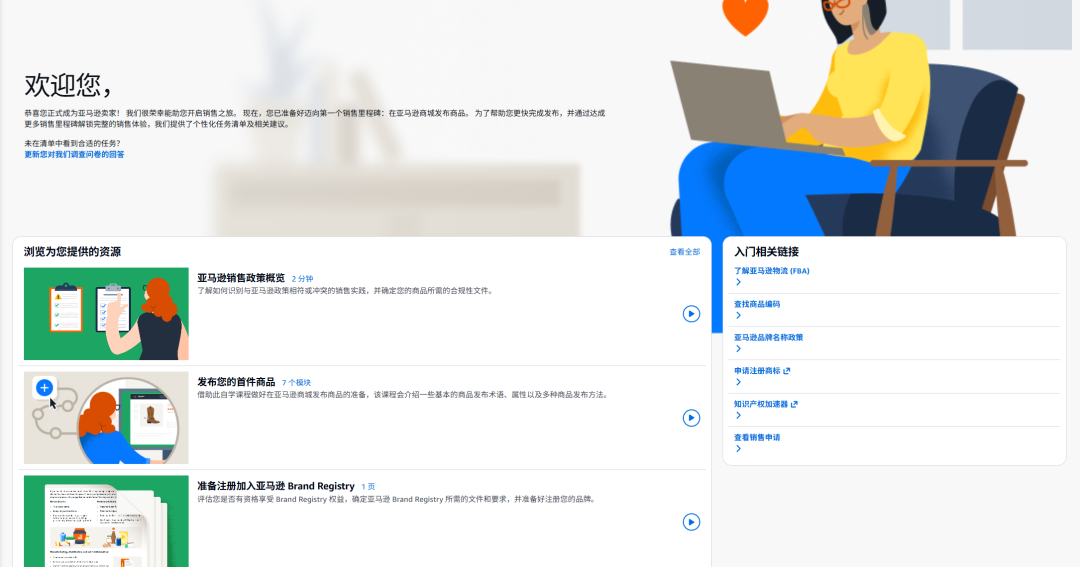
If you are a new seller using the new Seller Central for the first time, you may not immediately see workspace content. Please follow the on-page prompts and complete the learning resources shown on the homepage before entering the workspace.

To help sellers transition to the new experience, you can temporarily switch back if needed:
Option 1: Click “Classic Seller Central” in the settings menu at the top right of the homepage
Option 2: Open the “Classic Seller Central” entry at the bottom of the left navigation bar
⚠️ This is a one-time visit—after you go to the next page, you'll automatically return to the new version (this option will remain available until early 2027).

What would you most like improved in the new version? Which tools can't you find? Leave a comment—your feedback will be collected and used for future optimization.
You can also comment with “the feature you most want to find quickly,” and we'll provide a location guide in the next post.
Some features may not be visible depending on your account permissions, subscription level, or region; actual entry points may vary slightly.
If you have any questions about Amazon, you can use the link ( https://wsurl.cc/wg4chn) or scan the code to contact an official Account Manager: