 Cross-border E-commerce Excellent Craftsman School
Last month, Amazon officially updated its compliance requirements regarding AI-generated human content (Synthetic Performer).

Image source: Youjiang AMZ White-Hat Strategies
Under the new rule, if sellers upload images or videos containing highly realistic AI-generated human figures, they must add a specific tag in the file metadata: contains-synthetic-performer
Many sellers have raised questions about this rule. Here are the most common concerns.
Q1: Which uploaded images need the AI label?
Per Amazon requirements, this policy applies to multiple media types uploaded by sellers, including: product listing images (main and supplementary), product videos, A+ Content, and Brand Store images or videos.
If any of these materials contain highly realistic AI-generated persons, they must be tagged. Examples: AI models wearing clothing to showcase products; AI humans displaying beauty, accessories, or home items; AI digital avatars introducing products in videos—all require the tag.
Q2: If an AI image only shows partial human features, like an arm or shoulder, does it need a label?
Yes! Many sellers mistakenly think that without a full face or only partial body, it does not count as an “AI-generated person.”
According to Amazon’s help page: if an image or video contains an AI-generated human, the media file metadata must be updated.
Here “human” includes not only full portraits but all AI-generated body parts.
Examples: an AI-generated hand wearing a ring, an AI-generated arm displaying skincare, an AI-generated shoulder showing apparel fit, or AI-generated partial body showing wearables—all qualify as AI-generated human content and must be tagged.
Q3: If I already mark AI generation in A+ Content, do I still need to tag image metadata?
No. If you used the AI marking option in the A+ Content Manager when uploading, you do not need to add the metadata tag. Either method is sufficient.
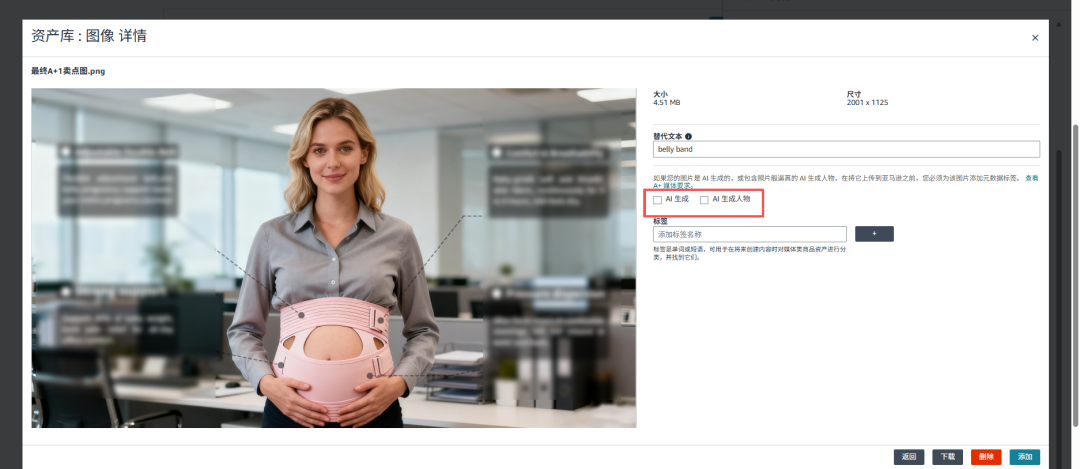
Image source: Youjiang AMZ White-Hat Strategies
Q4: Does this requirement only apply to people? Do AI-generated pets need tagging?
Currently, the requirement targets AI-generated human figures. If an image contains only AI-generated pets, animals, plants, or scenes without AI humans, the tag is not required.
The key criterion: does the image or video contain an AI-generated human (including body parts)?
Q5: Do ad creatives need this tag?
Currently, this requirement does not apply to ads. Advertising content follows a separate compliance process. Please refer to the “New York State Synthetic Performer Disclosure Compliance SOP (SA, ADSP).” Note, however, if your product image itself contains an AI-generated human and may be used in future ad campaigns, it is advisable to correctly tag it in advance for compliance.

Image source: Amazon
Q6: I did not generate the image; it was supplied by a vendor or photography studio. Whose responsibility is it?
Regardless of the source—vendor, photographer, design agency, or AI tool—once uploaded to your listing, sellers must confirm whether the image includes an AI-generated human.
If a vendor provides an “AI model image,” you cannot ignore it just because you did not create it. If it contains an AI-generated human, you must add: contains-synthetic-performer.
Q7: Do previously uploaded images need reprocessing?
If earlier uploads do not contain AI-generated humans and use real models, no changes are needed. If they contain AI-generated humans and you wish to keep using them, you can re-upload the file after adding the tag, since the AI image rule is now in effect.
We previously shared detailed steps on how to add the contains-synthetic-performer tag to images. However, many sellers still ask where exactly to add it and how to verify success.
Here is a simplified walkthrough:
1. Adding to a single image:
Step 1: Open the image folder, right-click the file and select 【Properties】
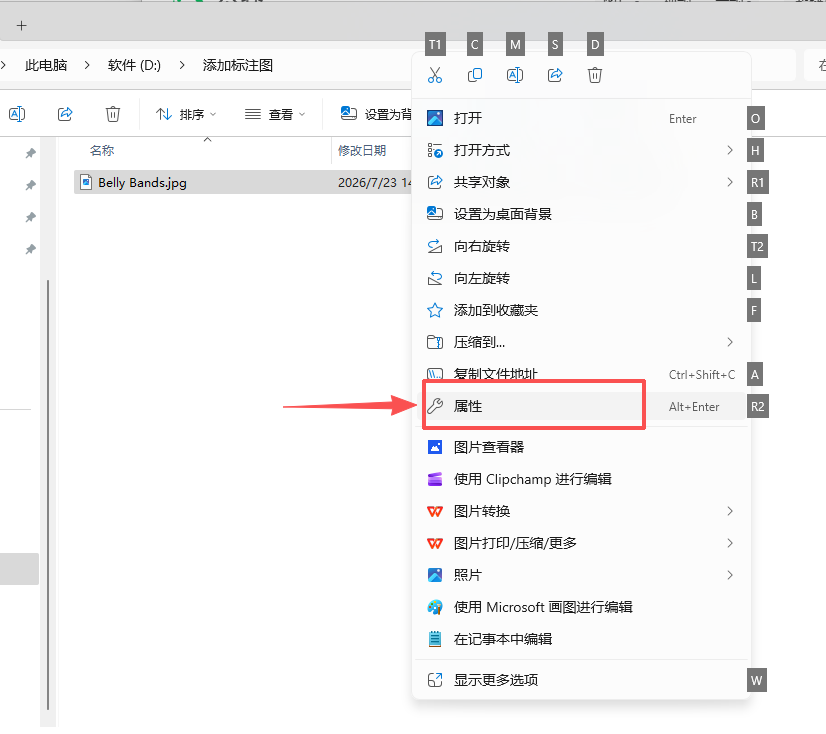
Image source: Youjiang AMZ White-Hat Strategies
Step 2: Click 【Details】, enter contains-synthetic-performer in the Tags field, and click OK.
Note: On desktop, the Tags field under Properties is visible for JPG files but not for PNG.
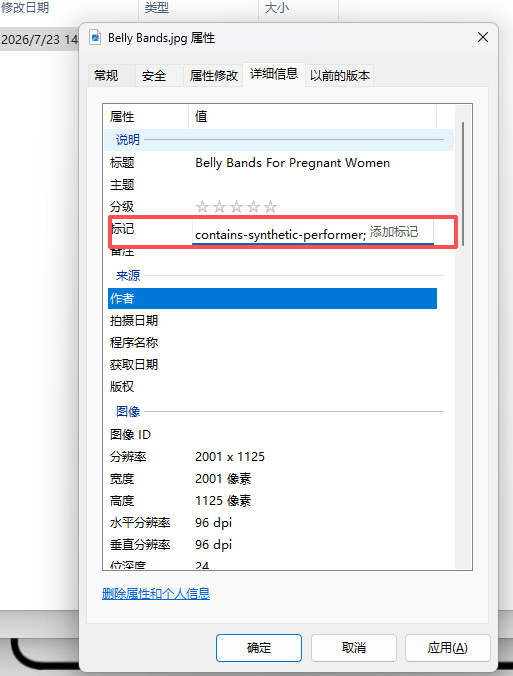 Image source: Youjiang AMZ White-Hat Strategies
After confirming, return to Details to see your added tag.
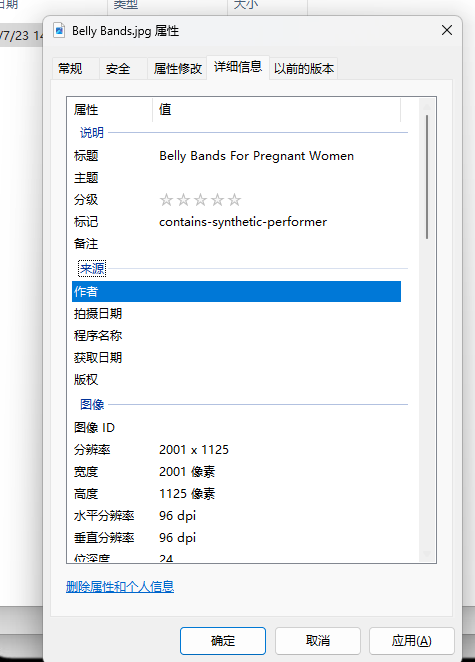
Image source: Youjiang AMZ White-Hat Strategies
2. Batch adding tags:
Use the ExifTool utility. Download ExifTool and extract it. Place the images needing the tag into the extracted folder—any format works.
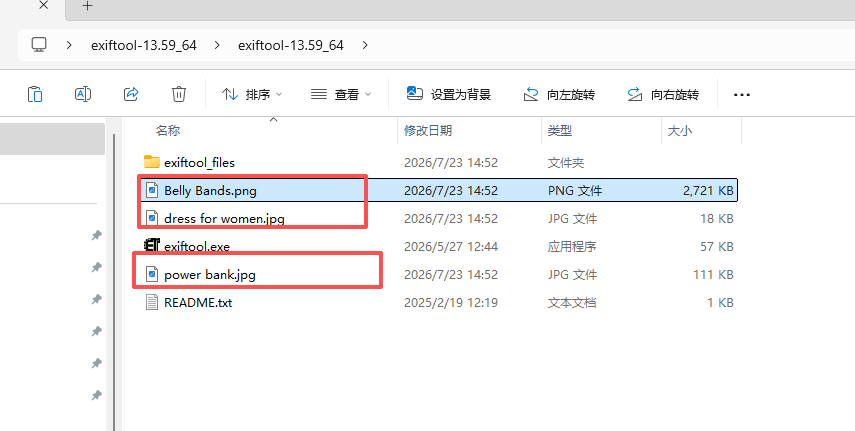
Image source: Youjiang AMZ White-Hat Strategies
Type cmd and press Enter.
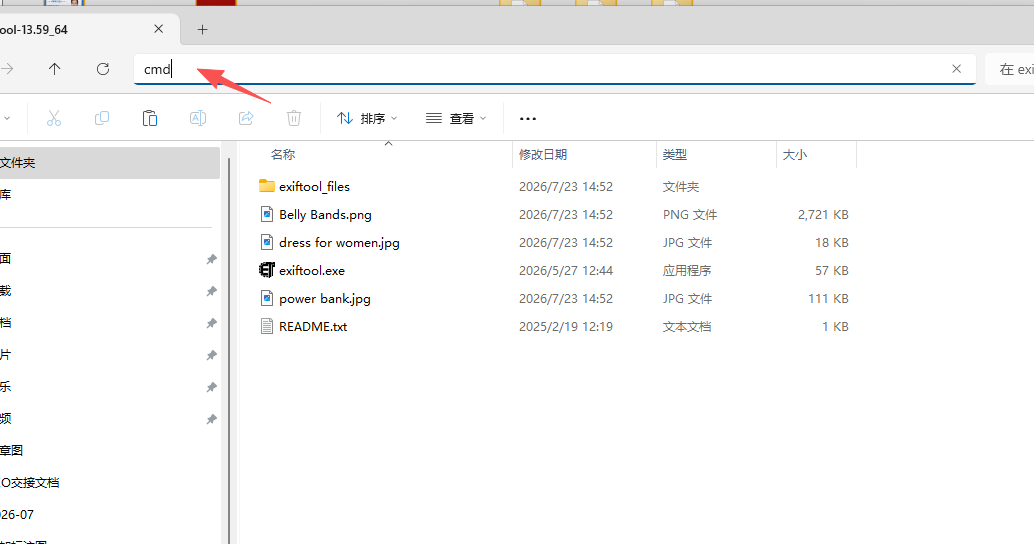
Image source: Youjiang AMZ White-Hat Strategies
Enter command: exiftool.exe -overwrite_original -ext jpg -ext jpeg -ext png -XMP-dc:Subject+=contains-synthetic-performer .
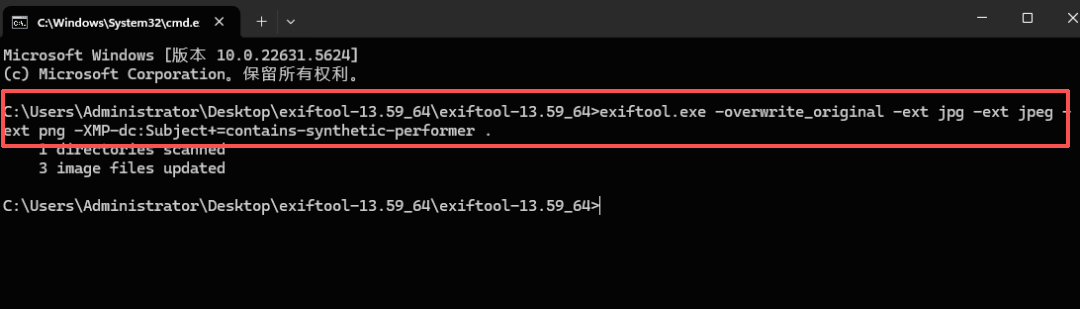
Image source: Youjiang AMZ White-Hat Strategies
This output confirms successful tagging.
To check if a PNG was tagged successfully, use this command for inspection: exiftool.exe -G1 "Belly Bands.png"
If the subject returns contains-synthetic-performer, the tag was applied correctly.
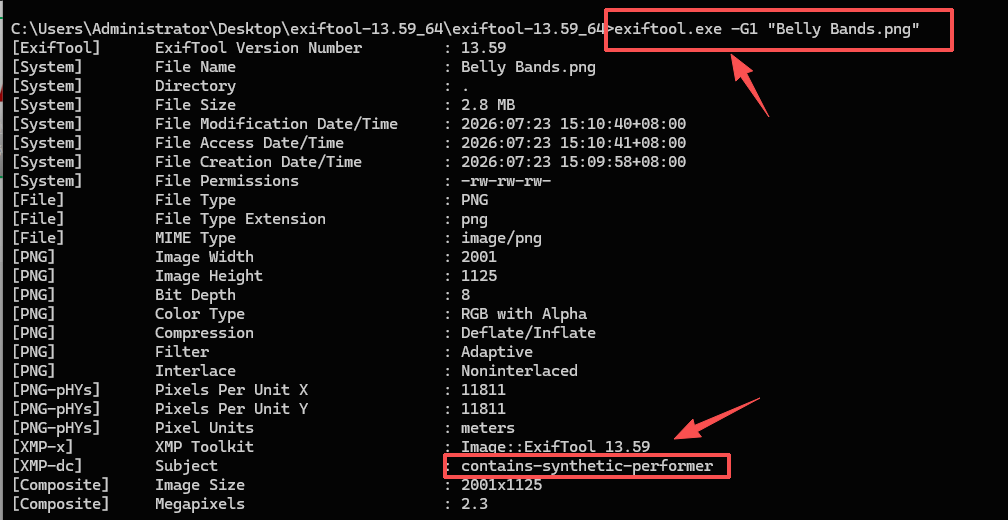
Image source: Youjiang AMZ White-Hat Strategies