 Amazon Global Store opening
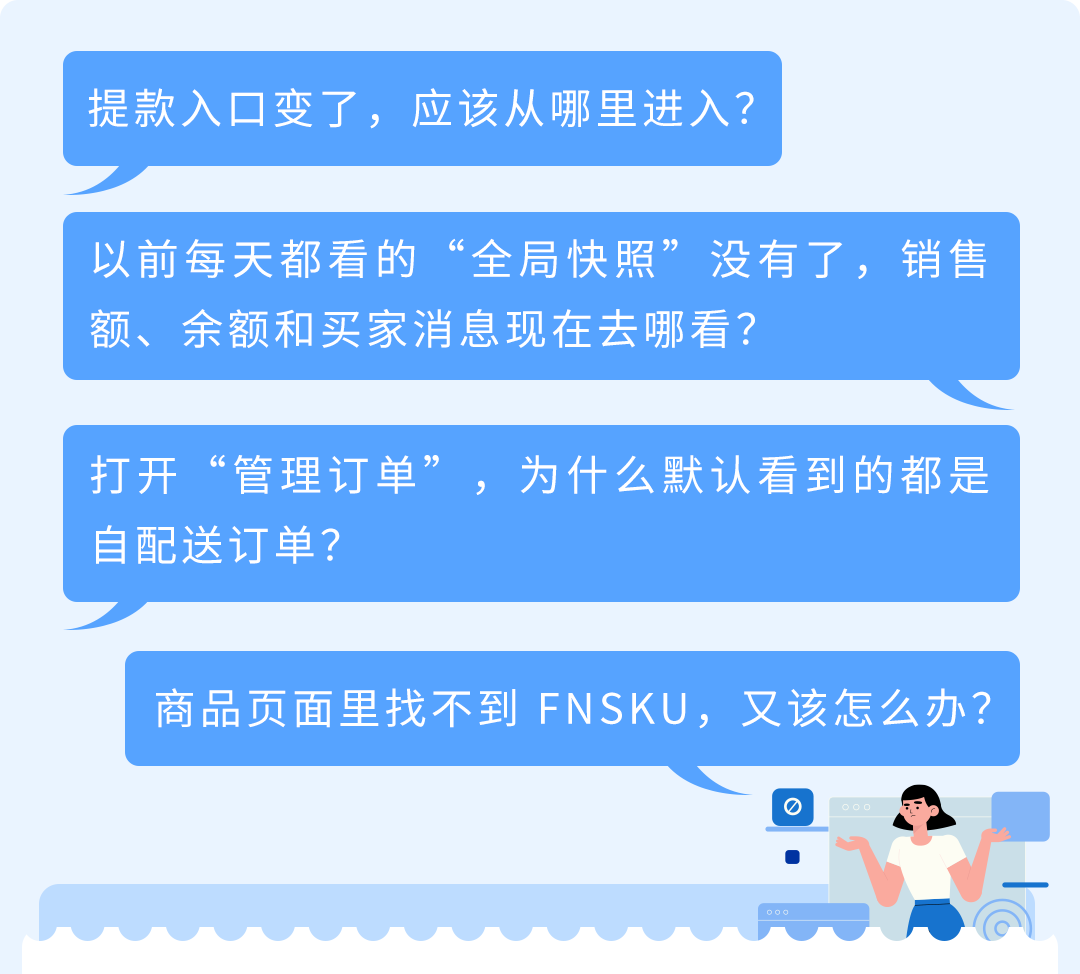
Since the new Seller Central launched, questions have shifted from “What changed?” to specific operational issues. Based on recent feedback, sellers mostly ask:
◉ How do I complete familiar tasks on the new pages?
◉ Where did frequently used features move?
Key takeaway: Most features are not gone—only entry points and layouts changed.
This article answers 9 frequently asked questions.

Before you start: the new experience for Manage Orders, Manage Shipments, Manage Inventory, Manage Transactions, and Manage Payments may vary by account. If your page looks different from the screenshots, you may still be on the old version.

This is one of the most asked questions.
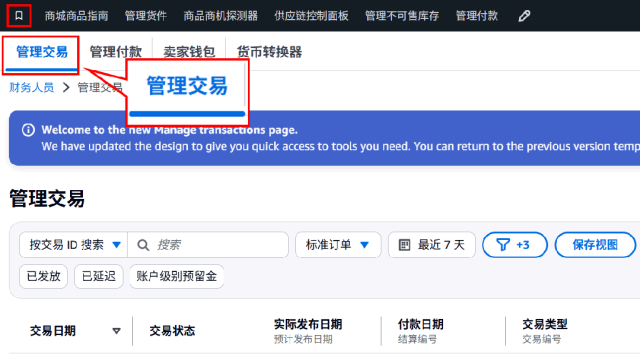
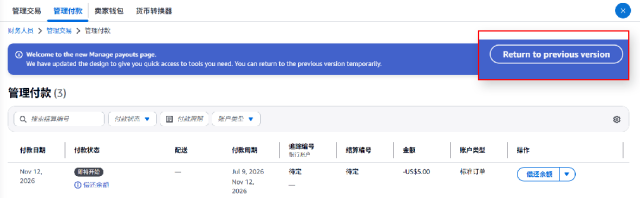
Withdrawal is not removed; the entry moved from “Payments” to the Finance workspace. Go to Manage Transactions, then Manage Payments.

1. In the left navigation, click Finance, then Manage Transactions.
2. On the Manage Transactions page, click Manage Payments.
3. In Manage Payments, find the row with status “Upcoming” and click Request payment or pay balance (button name may vary).
Tip: if you use Manage Payments often, bookmark it for direct access.
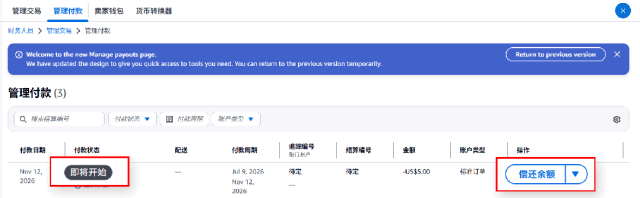
You can also go to Finance → Workspace, find the Payment Overview widget, and click Manage Payments.
If you prefer the old page, click “Return to previous version” to complete the task.
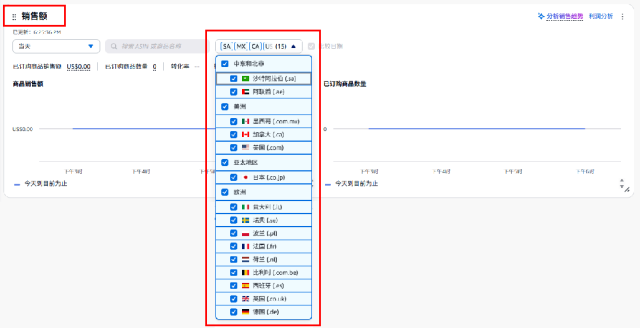
For multi-site sellers, the old Global Snapshot is no longer available, but the data can still be viewed in different places.

Use the Sales and Orders widgets to view multi-site data. They show totals or individual sites without repeated switching.

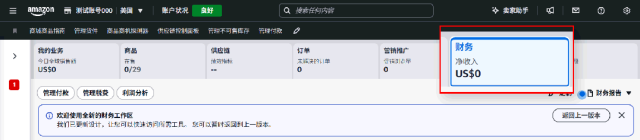
Go to Finance → Workspace to see the current site balance and upcoming payments. To view another site, switch sites in the top-left corner.

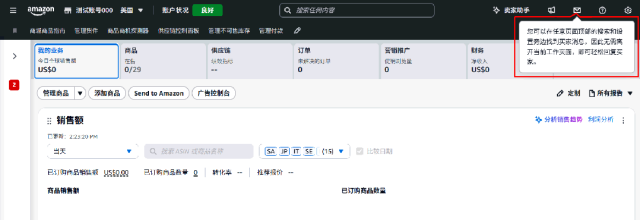
Click the envelope icon in the top-right corner to access buyer messages across marketplaces.
*To avoid missing replies, switch to each active site and check messages individually.
FBA orders are not missing. The new Manage Orders page shows seller-fulfilled orders by default. Use the filter bar at the top right and select Amazon-fulfilled to view FBA orders.
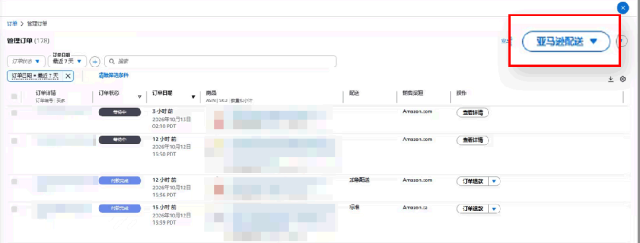
If your Manage Orders page is still the old version, continue using it as before.
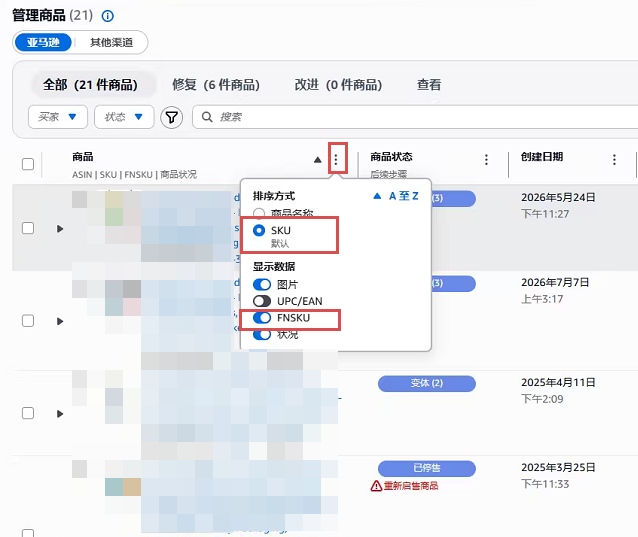
FNSKU is not removed. In the new Manage Inventory page, it may not show under each SKU.

1. Go to Product → Manage Inventory.
2. Click the “…” next to the product and select FNSKU.
3. FNSKU will then display together with ASIN and SKU for easier checking.
Note: you must select both SKU and FNSKU for FNSKU to appear.
If you still have the old page, FNSKU is shown by default under each SKU.
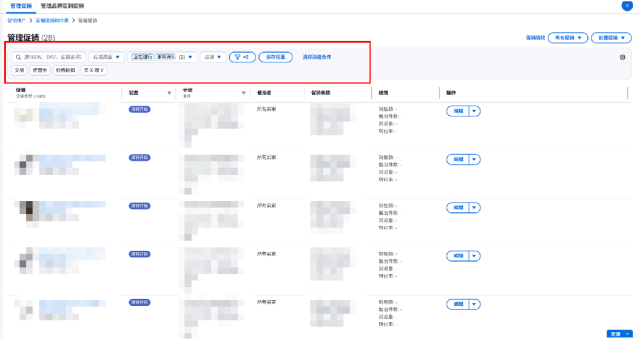
During peak seasons, multiple promotions may be running. Go to Marketing → Manage Promotions and Deals → Manage Promotions to view all promotions.
Use sorting by Status or Schedule, or filter by promotion type, status, and store.
Creation entry points for Deals, Coupons, and Price Discounts are centralized on this page.
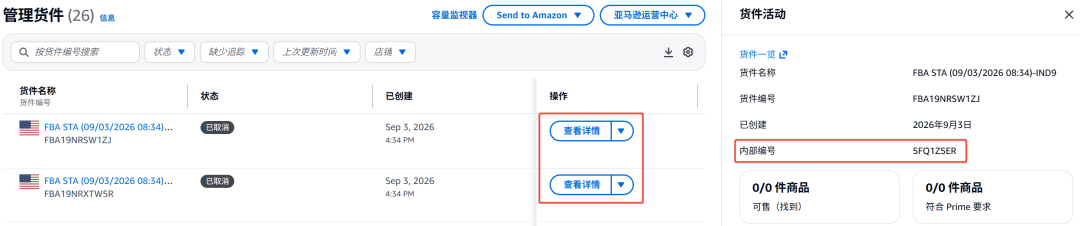
In the new Manage Shipments page, the internal shipment ID is not shown in the list. Click View details to find it.
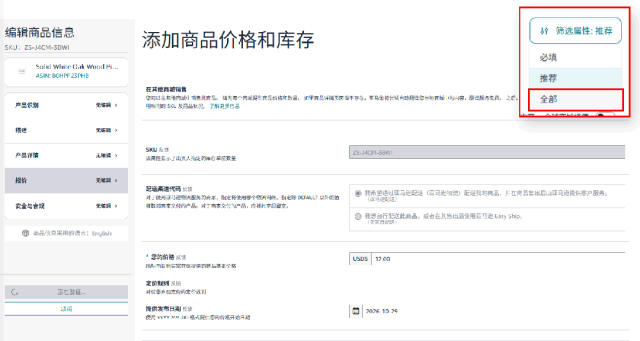
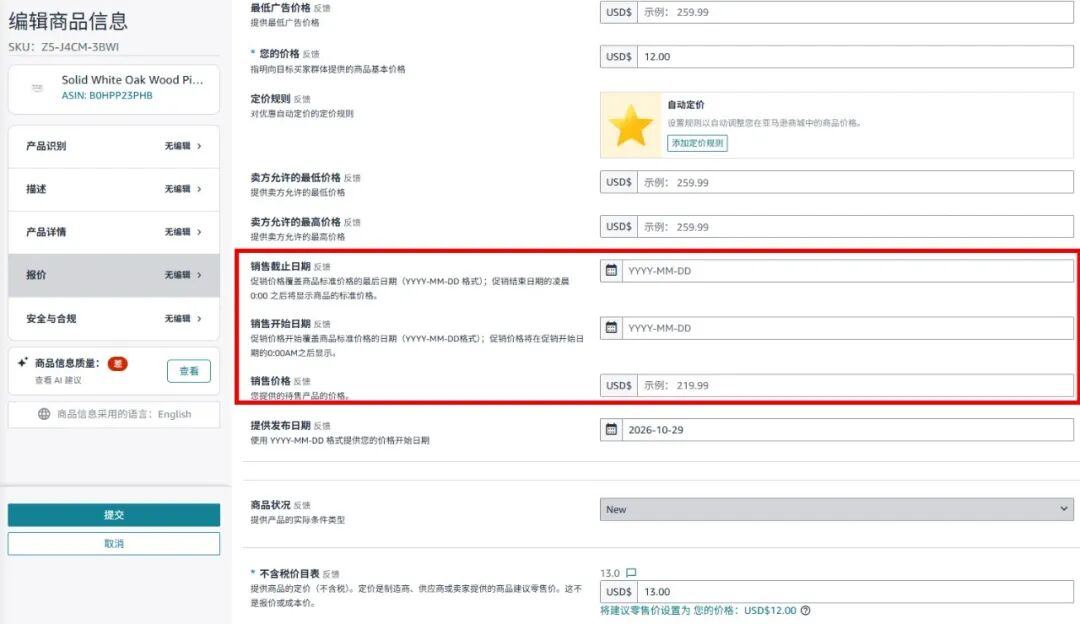
When adding or editing products, fields like sale price, start time, and end time may not appear. They are not deleted; the page just isn’t showing all attributes.
Open Filter attributes at the top right and select All. For multi-marketplace products, click “Edit” on the marketplace card first.

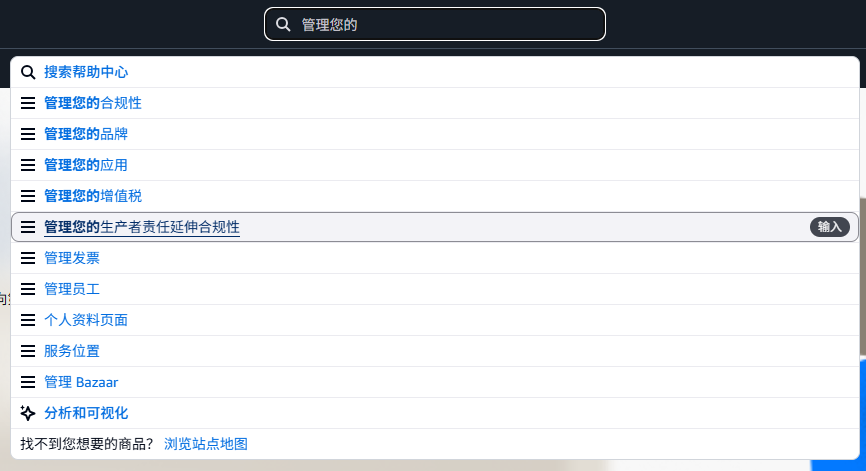
For Europe sites, if you cannot find “Manage your EPR Compliance,” search “管理您的生产者延伸责任合规任务” in the top search bar and open it from the results.

You can temporarily return to the classic version via:
◉ Top right: Settings → Classic Seller Central
◉ Bottom of left navigation: Classic Seller Central
This is a one-time visit, not a permanent switch. The next page returns to the new version. The option will remain until early 2027.

Instead of memorizing every new path, get familiar with these 4 built-in features.

Bookmarks from the classic version sync automatically. Bookmark 3–5 high-frequency pages like Manage Payments, Orders, Promotions, Shipments, and Financial Reports.

The “My Business” homepage has shortcut buttons for common actions, such as Manage Inventory, Add Product, Send to Amazon, and Ads Console.
Each workspace also has Manage Hubs, where you can directly access common pages.

Click Customize in the top-right corner of My Business to add, remove, or drag widgets so the most important data is where you want it.
Click Reset to default to restore the original layout.

Action Center shows product issues, policy notices, and performance alerts. It changes by workspace, so check it regularly.

Another common question: where did familiar features move? The new Seller Central groups 200+ tools by business area. Instead of memorizing paths, use these 3 methods:

Site Map lists all tools by location. Entry: left navigation → bottom-left → Site Map.

Search by tool or page name. Try old or new Chinese names; if still not found, switch to English and search the English name.

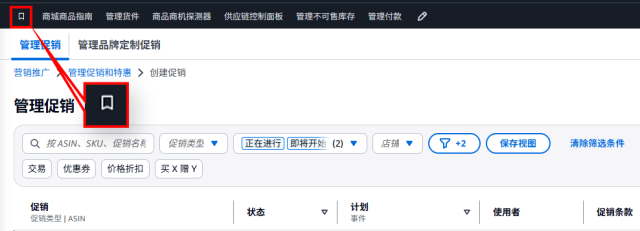
Click the bookmark icon on any page to save it. Classic bookmarks sync automatically.

◉ All reports: My Business workspace → right side → All Reports.
◉ Balance, withdrawals, and payments: Finance workspace → Financial Reports.
◉ Product-related: Product workspace → Product Reports for listings, images, videos, and A+ content.
◉ Inventory and shipments: Supply Chain workspace → Supply Chain Reports.
◉ Orders, returns, and buyer feedback: Orders and Buyer workspaces. High return labels: Orders > Manage Returns > Return and Recovery Insights.
What other issues have you encountered? Which features are still missing? Share in the comments. We will collect feedback for future improvements.
If you have questions about Amazon, contact the official client development manager via https://wsurl.cc/wg4chn or scan the QR code: